Coupang Play with Korean and English subtitles at the same time
The Coupang Play player shows one subtitle track at a time. SubLater adds a second line under the one you picked. It needs the title to carry both Korean and English subtitles, and some titles have no English track, so check the subtitle menu before anything else.
At a glance
- A Chrome and Whale extension for your computer (on Mac and iPad, the App Store app in Safari)
- Dual subtitles stay free after the trial
- Two lines appear only when the title has both Korean and English subtitles. SubLater doesn’t create or translate subtitles
14-day full trial · the core features stay free forever
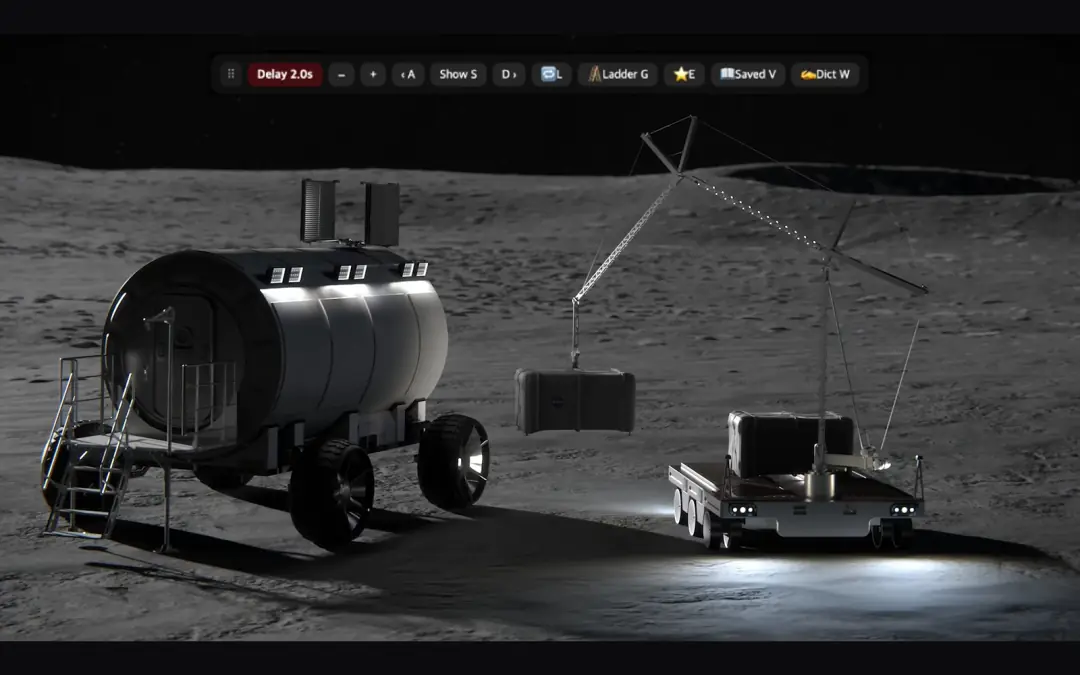
Illustration: the main line with the second line underneath. The scene is a NASA public-domain video, not Coupang Play.
Check the subtitle menu before you start
The second line comes from the subtitles the title already has. Play the title and open the player’s subtitle menu.
- Korean and English both listed: dual subtitles work.
- Korean alone: you get the Korean line by itself. No English line is added.
On a title with one track, the late subtitle, line jumps and looping a line still work.
Turn it on in Coupang Play
- Install SubLater in Chrome or Whale on your computer.
- Play a title on Coupang Play. If a tab you opened before installing looks unchanged, reload it.
- Turn on Korean subtitles in the player’s subtitle menu. With subtitles off, SubLater has no line to add to.
- An English line appears under the Korean one. If it doesn’t, press T.
T second line on/off Z re-align both lines −/+ delay off/on / shortcut card
Both lines arrive a beat late, on purpose
SubLater was built to show subtitles a beat after the audio (2.0 s on the free plan), so you hear each line before you read it. The second line comes with the main one. It isn’t broken.
If you just want both subtitles right away, bring the delay down to 0 s. On the free plan, one press of − does it. During the 14-day trial each press takes off 0.5 s, so keep pressing until it’s at 0. Zero delay is free too. Press + to bring the delay back.
The second line doesn’t show up
- Check the subtitle menu for both Korean and English. A title with one of them gets one line.
- Make sure subtitles are turned on in the player.
- While an ad is playing, line jumps and loops pause. They come back when the ad ends.
- If the two lines get out of step, press Z.
- If another subtitle extension is on, you may see two sets of subtitles. Press X to hide the other extension’s subtitles.
Learning English instead?
It works the other way too. Turn on English subtitles and a Korean line appears below, as long as the title has English subtitles. Dual subtitles only work for the Korean and English pair.
On iPad and Mac
Get the SubLater app from the App Store and open Coupang Play in Safari. It doesn’t work inside the Coupang Play app. iPad needs iPadOS 18 or later.
On iPad, a tapped link opens the Coupang Play app. Type coupangplay.com into Safari’s address bar, or tap the Coupang Play button in the SubLater app. There’s no keyboard, so tap the small arrow (⌃) at the right edge of the video and use the “Dual subtitles” switch under ⋯.
Phones aren’t supported. It can’t be installed on Android phones, and on iPhone the app works for YouTube only.
What’s free
You get every feature for 14 days. After that nothing locks; the free plan keeps going.
Free
Delay off or on (2.0 s), dual subtitles, line navigation, replay and loop, auto-pause, word lookups, 10 scored dictation lines a day, 50 saved linesPro
Delay from 0 to 5 s in 0.5 s steps, Reveal mode (subtitles wait for S), unlimited dictation and more · PricingFAQ
Will it add English to a title that has no English subtitles?
No. SubLater uses the subtitles the title already carries. It doesn’t create or translate them.
Does it work on Netflix or YouTube?
Both work. Netflix is covered in Netflix with Korean and English subtitles at the same time. On YouTube the second line is YouTube’s auto-translation, so it’s machine translated and sometimes doesn’t show up.
Does it work for other language pairs?
No. Dual subtitles are Korean and English only.
Does it work in the Coupang Play app on a TV or phone?
No. Watch in Chrome or Whale on a computer, or in Safari on a Mac or iPad.
Install
Whale StoreMac · iPad Safari — App Store
14-day full trial · the core features stay free forever