Shadowing English on iPad Safari: from install to your first sentence
When the subtitle arrives a beat after the line is spoken, you hear it first, check it, then say it back.
At a glance
- A Safari extension that shows subtitles a beat late (free: 2.0 s, on or off)
- Safari on iPad and Mac (iPhone: YouTube only)

Demo footage: NASA, public domain.
iPad: from install to your first sentence
- Get SubLater from the App Store (iPadOS 18 or later) and open it once. The app only holds setup and subscription screens; the work happens in Safari.
- Go to Settings → Apps → Safari → Extensions, tap “SubLater · Subtitle Delay & Dictation” and turn on “Allow Extension”.
- Further down, under Permissions, change youtube.com, netflix.com and coupangplay.com from “Ask” to “Allow”.
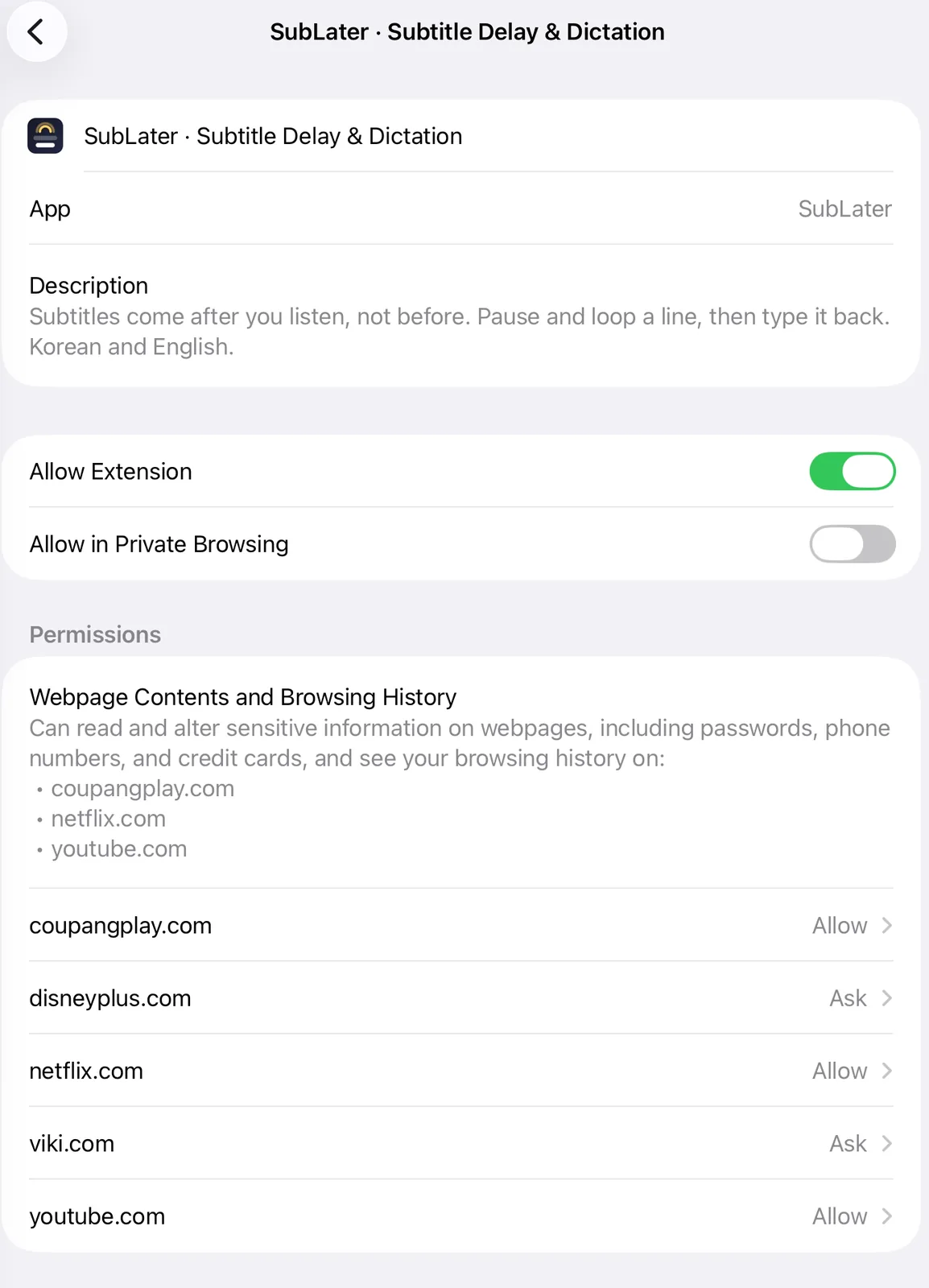
Sites you use should read Allow. - Type youtube.com into Safari’s address bar (or tap “Open YouTube in Safari” in the app). If the YouTube app opens instead, tap the site address in the status bar to get back.
- If a permission banner appears, open it, choose “Always Allow…”, then “Always Allow on This Website”. No banner? Tap the puzzle-piece icon in the address bar, then “SubLater · Subtitle Delay & Dictation” to open the same prompt.
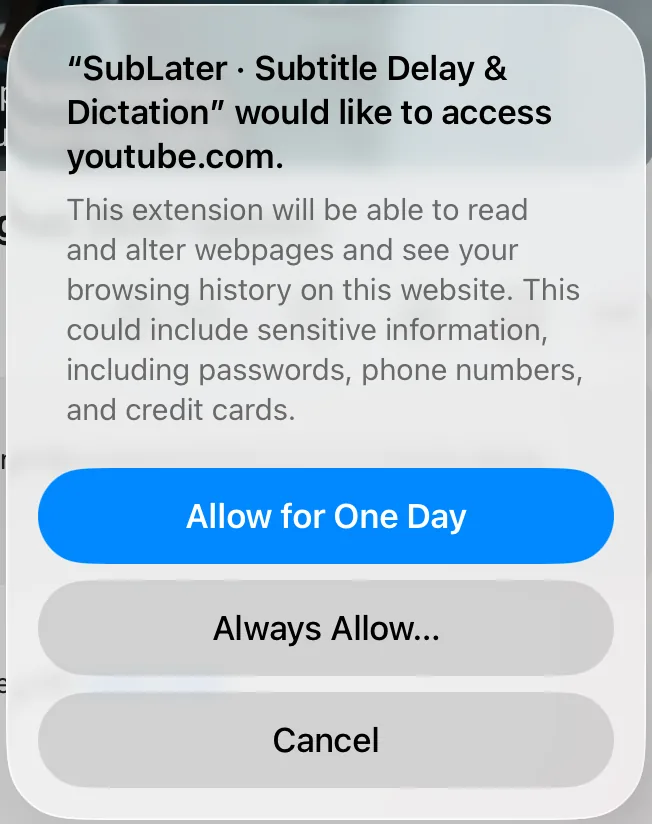
Allow for One Day stops working the next day. Pick Always Allow… instead. - Open a video with English captions and turn on CC yourself. If the audio or captions come up in another language, switch them in the player’s ⚙ menu. Press play: the subtitle now lands a beat after the audio.
Say it back, one line at a time
Tap the small dot at the right edge of the video to open the buttons, and turn on “Pause after each line” in the ⋯ menu: the video stops after each caption line. Say it out loud, then tap ↺ to hear it again, ▶ to carry on or › for the next line. 🔁 loops a line, S shows the subtitle right away, and tapping a word shows its meaning.
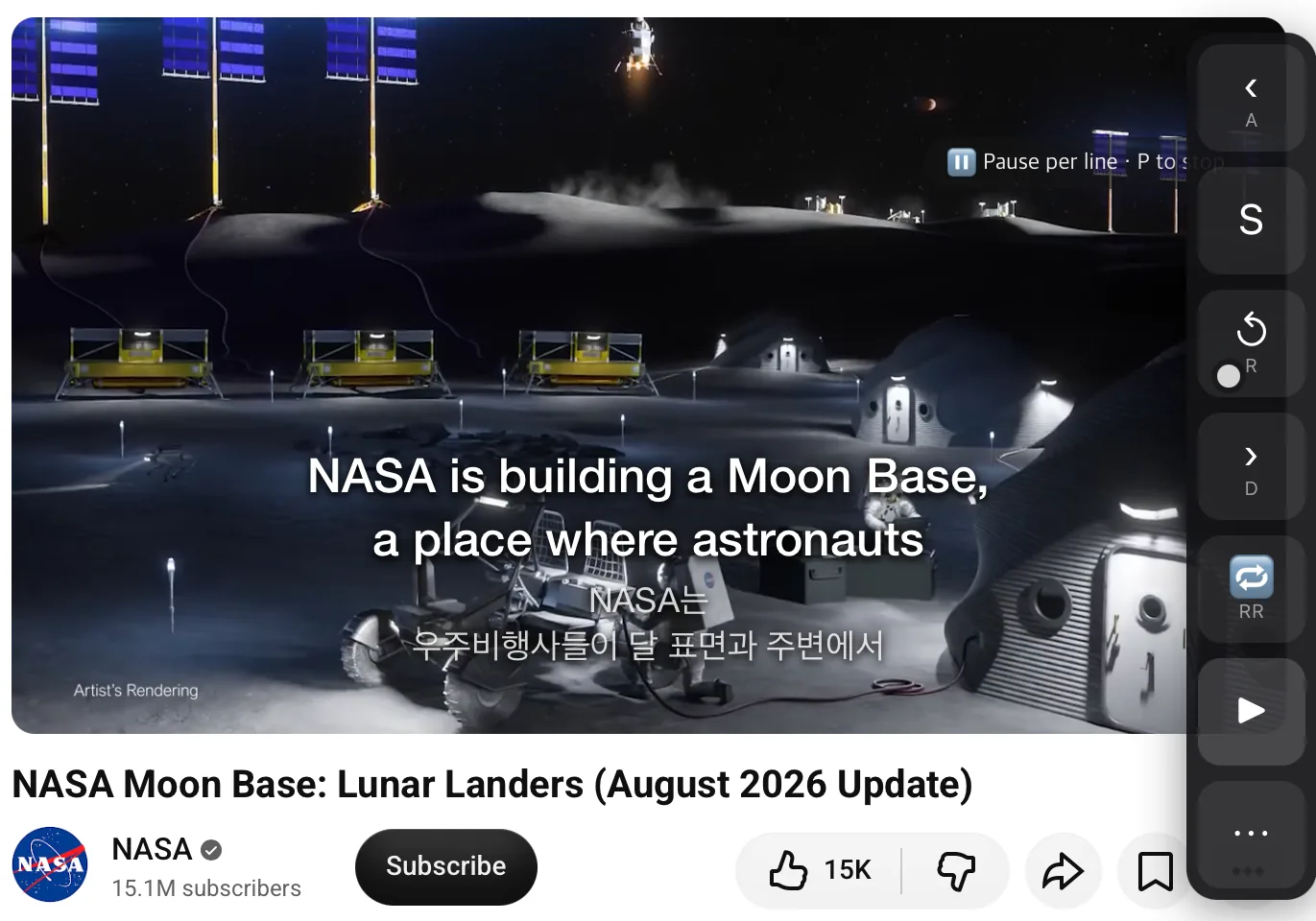
Mac Safari
Open the app, click “Open Safari Settings”, turn on SubLater, then use “Edit Websites…” to set your sites to Allow. On a Mac you use the keyboard: R replay, P pause after each line, A/D previous/next line, / shortcut card.
Where it works
| Device | YouTube | Netflix | Coupang Play | Disney+ |
|---|---|---|---|---|
| iPad | works | works | works | not supported |
| Mac | works | works | works | works |
| iPhone | worksRequest Desktop Website | not supported | not supported | not supported |
Not inside the YouTube or Netflix apps. Shorts and videos without captions won’t work, and AI explanations aren’t available in Safari.
Which languages?
SubLater is built for Korean ↔ English. Word meanings on English subtitles are in Korean, Korean words get English meanings, and the translation line and dictation scoring cover those two languages only.
Free and Pro
The app doesn’t lock after the 14-day trial. Delay on/off (2.0 s), dual subtitles, line jumps and loops, pause after each line and word meanings stay free, with 10 dictation lines a day (counted when scored). Pro adds an adjustable delay (0–5 s), Reveal mode, the sound line and unlimited dictation. It’s an in-app subscription, monthly or yearly, priced in the App Store. It renews unless cancelled at least 24 hours before the period ends; manage it in your App Store account settings. Pro bought on sublater.com (for Chrome and Whale) doesn’t carry over to Safari.
FAQ
Does it work on iPhone?
YouTube only, with Settings → Apps → Safari → Request Desktop Website → All Websites turned on.
Nothing changed.
Check that the site is set to Allow, you’re in Safari and CC is on, then reload the tab.
Full 14-day trial — the core features stay free after that.
On Chrome? Install free from the Chrome Web Store.